![logo-green.png]](https://www.help.archer.re/hs-fs/hubfs/logo-green.png?height=40&name=logo-green.png)
Overview
Archer now builds an estimate of a property’s income, price and returns from whatever data exists on it: a rent roll, a T12, or nothing more than public records and comparable properties. The Rapid Screener is how you interact with that estimate: a live, adjustable underwrite you can read and move without opening Excel.
It comes in two forms. When Archer has no model from you, the screener runs on Archer’s own data and standard assumptions. Once you’ve saved an underwrite on a property, the screener shows your model’s numbers and moves the way your model would.
The same numbers power the Valuation & Returns filters in Deal Sourcing, the Deal Inbox, your pipeline and every property page.
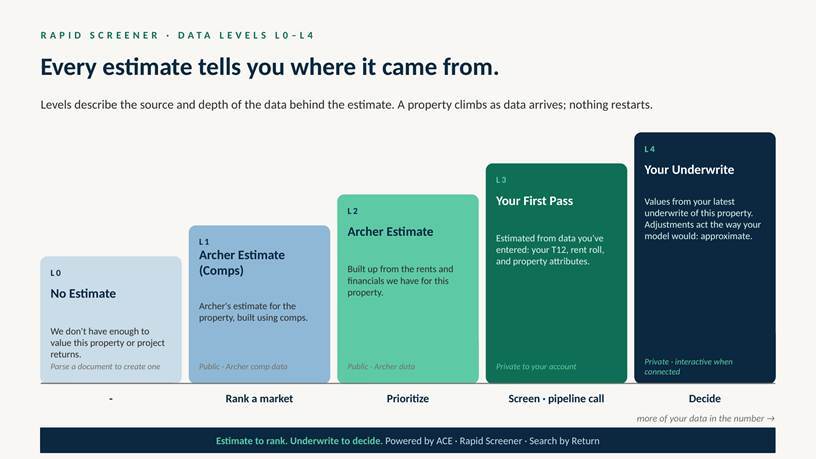
Data Source levels
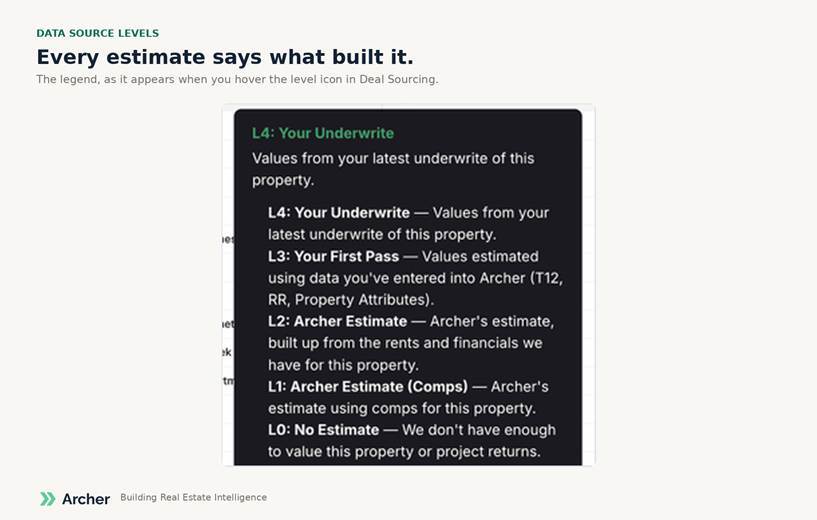
Every estimate carries a Data Source level, L0 through L4, that tells you what data built the number and how much of it is yours. The level is not a grade. It describes the source.
|
Level |
Built from |
Notes |
|
L0 · No Estimate |
Nothing |
Not enough data to value the property or project returns. Parse a rent roll or T12 to create one. |
|
L1 · Archer Estimate (Comps) |
Comparable properties |
No rent or expense data on the property itself: county records plus comps. |
|
L2 · Archer Estimate |
Comps plus the property’s own data |
Rents or financials Archer holds on the property fill in over comps. |
|
L3 · Your First Pass |
Your rent roll, T12 or attributes |
Private to your account. Your data run through Archer’s standard model. Correcting a single attribute, such as unit count or class, is enough to reach L3. |
|
L4 · Your Underwrite |
Your saved underwrite |
Private to your account. Your model’s figures: price, IRR, cash flow, market rents. |
Higher levels are built on more of your data. A property climbs as data arrives; nothing restarts.
Where to find it
Anywhere in Archer that shows underwriting results now shows the screener. Look for the speedometer icon.
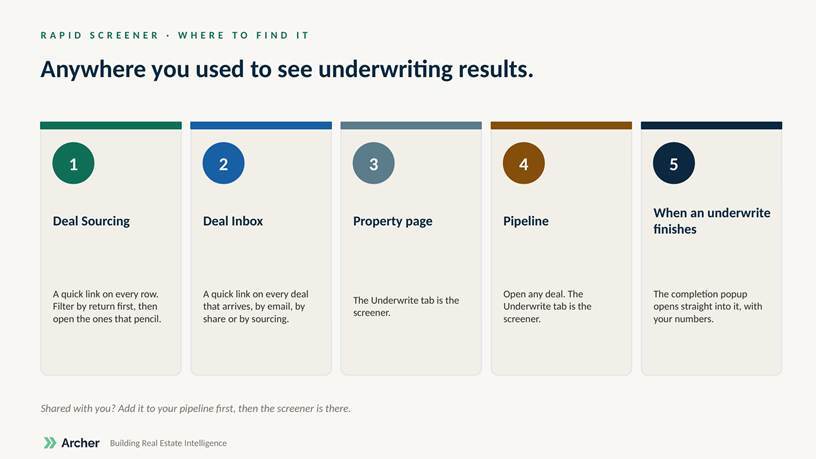
- Deal Sourcing. The speedometer icon on any result opens it.
- Deal Inbox. The same icon on any deal; the Underwrite tab in a deal’s modal is the screener.
- Property page. The Underwrite tab.
- Pipeline. The Underwrite tab in a property’s modal.
- End of an underwrite. The completion popup includes Open Screener as soon as the model finishes.
One catch: a deal shared with you shows the flat metrics view until you add it to your own properties or run an underwrite. The live screener appears once the data is in your profile.
Using the screener
The screener opens as a panel with the levers that decide a deal: purchase price, exit cap, hold period, rent growth and LTV. Advanced controls adds physical occupancy, renovation assumptions, reserves and more. Change any of them and the returns (IRR, cap rate, equity required) recalculate, the way you’d iterate in Excel.
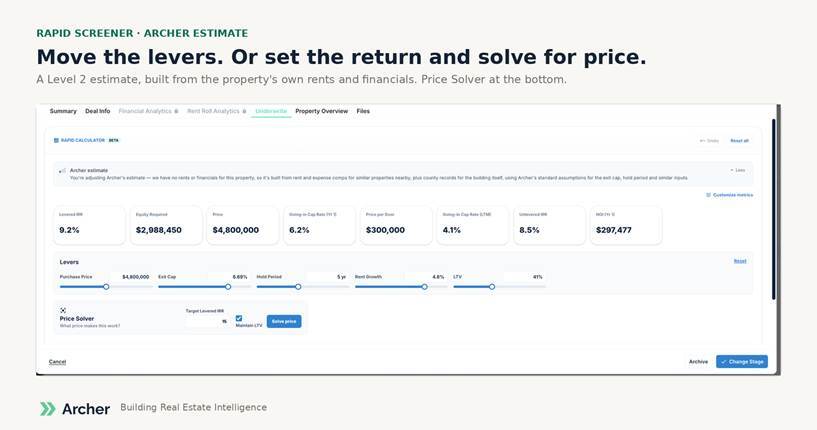
Price Solver works the other way. Enter the levered IRR you need and it solves for the purchase price, holding LTV constant if you choose.
Undo and reset. Ctrl+Z and Ctrl+Y step back and forward through your last few changes. Reset all returns to the saved figures. Adjustments are session-only in this beta; they don’t save back to your pipeline or your model yet.
Hover any metric for a note on how it was derived and which level it comes from.
When data is missing
If the screener can’t do something safely, it says so rather than guessing.
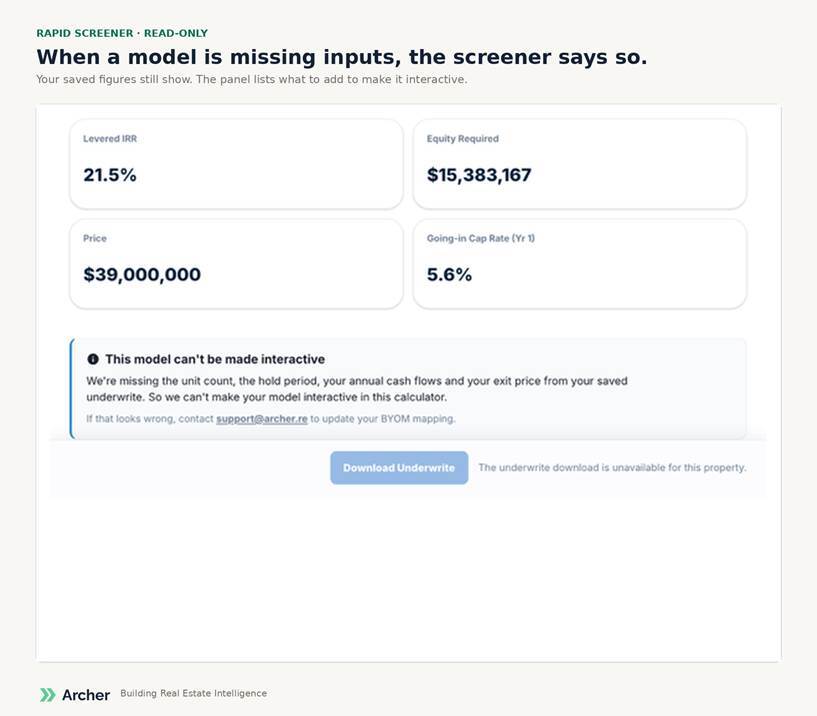
- Read-only. Your saved figures show, but no lever moves. A required input is missing from the model.
- A greyed section. One panel’s controls are disabled. No unit mix greys the rent controls; no loan terms holds leverage where it is.
- A hidden metric. One tile can’t be drawn; the rest works.
When a saved underwrite has a full return but no cash-flow detail, Archer shows the saved numbers as static rather than risk contradicting them with a live but incomplete calculator. Nothing has been lost. See Why isn’t my Rapid Screener interactive? for what to add and where.
How the screener represents your model
Once you’ve saved an underwrite, Archer reads your model’s inputs and outputs from the Archer Connection tab and infers how it behaves: whether it reassesses taxes on acquisition, how it applies growth, which exit cap it uses. From that, Archer builds a baseline meant to land close to your saved return.
When you adjust a lever, Archer recalculates the baseline, measures how much it moved, and applies that same movement to your saved number. The result closely tracks your model’s logic without re-running your Excel file. Your saved figures are exact; the adjustments are approximate, and the screen says so. Compounding changes, such as extending the hold or adding a renovation, are where the approximation is roughest.
If you need the exact answer, run the underwrite. The screener tells you whether it’s worth running.
What the estimates are, and aren’t
An Archer estimate is a starting point, not a verdict. Use it to rank and prioritize; use your underwrite to decide. We’ve measured these estimates against thousands of owner-reported financials: they lean conservative, and they get meaningfully better as your own data comes in. Comps-only estimates on small or thinly-comped properties are the most conservative; correcting attributes or adding a rent roll moves them to your data.
Not an appraisal, not investment advice, and not a replacement for underwriting the deal you love.
Current limitations (beta)
What’s coming
Saving your adjustments. Improving an estimate without a model, by entering a whisper price or a known NOI. And, as every underwrite and parse builds a benchmark from your own book, comparing deals against each other on risk and return. More on each as it ships.
Related articles
Rapid Screener: what it is and where to find it · Data Source levels, explained · Search by Return: the Valuation & Returns filters · Why isn’t my Rapid Screener interactive? · BYOM readiness checklist · Rapid Screener FAQ