![logo-green.png]](https://www.help.archer.re/hs-fs/hubfs/logo-green.png?height=40&name=logo-green.png)
Overview
The Parse Document flow lets you parse a Rent Roll independently of a full underwrite. Archer reads your file, automatically maps and interprets the data, and guides you through a structured review — the same steps as the Run Underwrite flow, but with a parsed Excel download at the end instead of a generated underwrite.
Use this flow when you want to:
- Parse and validate a Rent Roll before deciding whether to run an underwrite
- Update a previously parsed Rent Roll with a new file mid-deal
- Parse a Rent Roll for a student housing property, with or without a Pre-Lease Rent Roll
- Review Rent Roll analytics and comp benchmarks as a standalone exercise
Archer handles the following automatically:
- Maps column headers from your Rent Roll to Archer's standard schema
- Interprets charge codes into plain-language categories (e.g., "gar" → Parking Income, "empldisc" → Employee Discount)
- Pre-fills missing floor plan details including beds, baths, unit type, and square footage
- Validates parsed data and flags outliers before download
- Provides live Rent Roll analytics benchmarked against market comps
Note: The steps in this flow are identical to Steps 2–5 in the Run Underwrite with In-App Parsing flow. If you are running a full underwrite, see How do I run an underwrite with In-App Parsing? instead.
🔒 Pro plan only: If you prefer to parse via the Excel Add-in instead, you can do so from within Excel. Remember to Save to Archer afterward for the parse to appear in All Activity.
How to access Parse Document
The Parse Document button is available in two places:
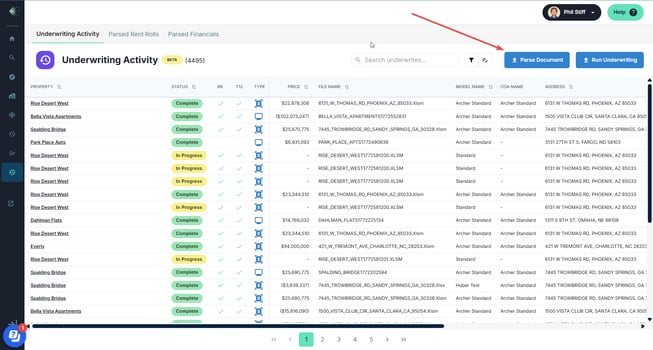
From the All Activity page: Click Parse Document in the top right corner of the Underwriting Activity, Parsed Rent Rolls, or Parsed Financials tab.
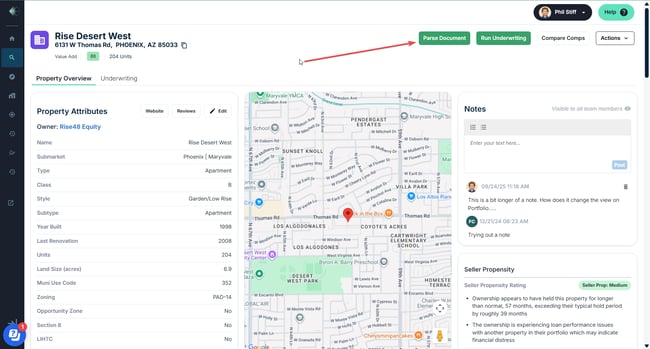
From a property page: Navigate to the property and click Parse Document from the property page header.
Step 1: Upload Files to Parse
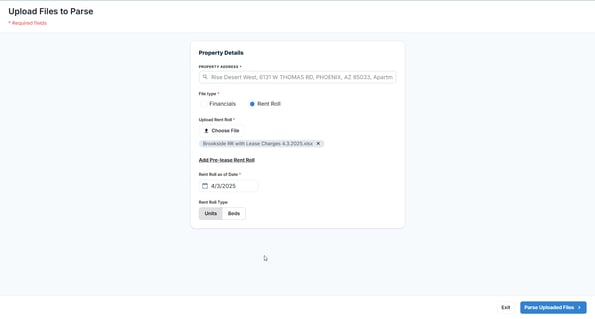
Clicking Parse Document opens the Upload Files to Parse modal.
Required fields:
- Property Address — search for and select the property you are parsing for
- File type — select Rent Roll
- Upload Rent Roll — click "Choose File" and select your Rent Roll (.xlsx)
- Rent Roll as of Date — must reflect the actual snapshot date of the rent roll, not the date you uploaded it
Optional:
- Add Pre-Lease Rent Roll — if you have a pre-lease file for a student housing property, click this link to upload a second file alongside your main Rent Roll. See Student Housing & Pre-Lease Rent Rolls below.
Rent Roll Type:
Select Units or Beds:
- Units — standard residential properties measured by unit. This is the default for most properties.
- Beds — student housing properties measured by individual bed. Selecting Beds changes how unit counts, bed counts, and analytics are calculated and displayed throughout the flow.
Click Parse Uploaded Files to begin.
💡 Tip: The Rent Roll as of Date must reflect the actual snapshot date of the rent roll — not the upload date. This date is used in analytics and comp benchmarking.
Step 2: Map Rent Roll Columns
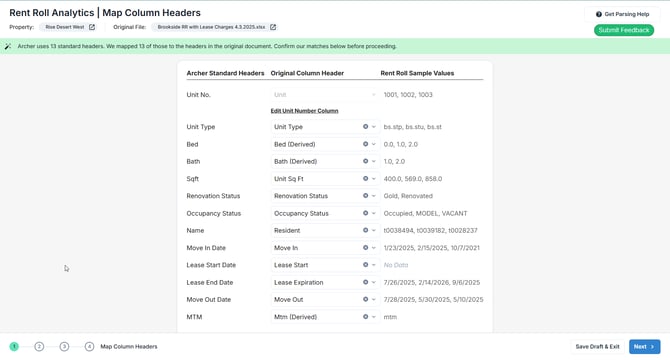
Archer reads your Rent Roll and maps its column headers to Archer's 13 standard headers. The system tells you how many were mapped automatically.
What Archer does automatically: Archer scans your file and proposes a mapping for each of its 13 standard headers based on column names and sample values in your file.
What you do: Review each mapping and confirm it is correct. Use the dropdown to fix any that are wrong or missing. Pay particular attention to:
- Unit Number — if there is no single unit number column, use "Edit Unit Number Column" to construct one from multiple columns
- Floor Plan — used to group units and identify unit type
- Bed and Bath — required fields; if missing, Archer will attempt to infer them from floor plan names in Step 3
- SqFt, Lease Type, Renovation Status, Occupancy Status, Move In Date, Lease Start Date, Lease End Date — map these where available
Toggle "Show Unmapped Headers" to review any columns from your file that were not mapped to an Archer standard header.
Note: Archer fills in data gaps automatically where possible — for example, using Move In Date as a substitute for Lease Start Date when Lease Start is absent, or estimating Lease Start when it does not exist in the file.
💡 Tip: Make sure your Rent Roll includes a clear unit number column, floor plan name, and lease dates before uploading — these are the fields most likely to need manual correction if missing.
Step 3: Map Charge Codes
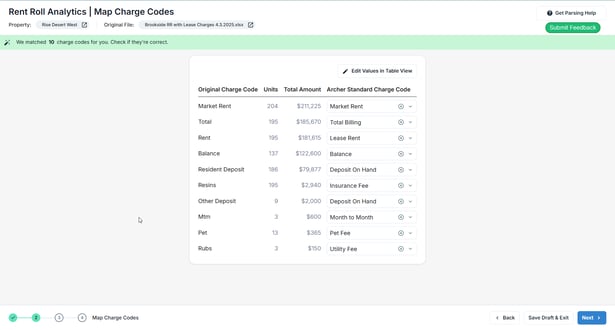
Archer reads all charge codes in your Rent Roll and maps them to Archer's standard charge code library.
What Archer does automatically: Archer scans all charge codes in your file and proposes a mapping for each against its standard library. The system tells you how many were matched automatically.
What you do: Review each mapped charge code. The table shows the original code, the number of units it applies to, the total dollar amount, and the proposed Archer Standard Charge Code. Correct any that are inaccurate.
Key behaviors:
- Abbreviated or non-standard codes are interpreted into plain-language categories (e.g., "gar" → Parking Income, "empldisc" → Employee Discount)
- Similar charge codes are grouped together for analysis (e.g., employee + customer + patrol discount → Employee and Other Discounts)
- Archer identifies the most likely Market Rent value using market rent columns in the file, the most recent leases, and in-place rents
Select "Edit Values in Table View" to review and edit the underlying charge code values in a full table before proceeding.
If you uploaded a Pre-Lease Rent Roll: A separate Pre-Lease Rent Roll Charge Codes section appears at the bottom of the charge code table. Review and confirm the mappings for the pre-lease file independently of the main Rent Roll. This section only appears when a PLRR has been uploaded.
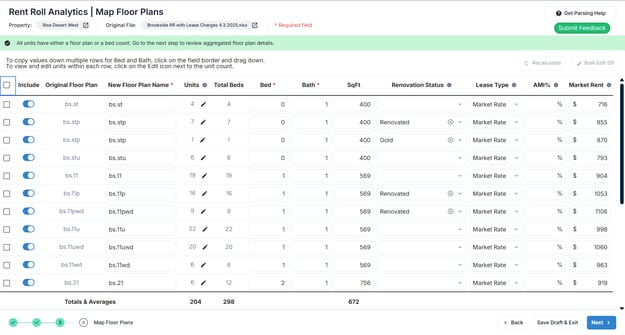
Step 4: Map Floor Plans
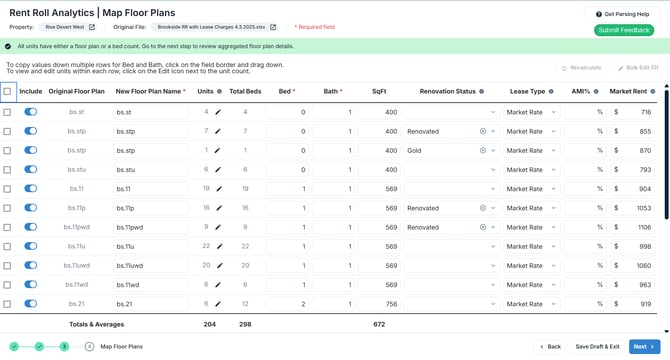
Archer pre-fills floor plan details for all unit types identified in your Rent Roll, including New Floor Plan Name, unit count, beds, baths, square footage, Renovation Status, Lease Type, and Average Market Rent.
What Archer does automatically: Archer groups units by floor plan and pre-fills details based on the data in your file and its own inference logic.
What you do: Review the pre-filled floor plan table. Beds and Bath are required fields and must be completed before you can proceed.
Additional actions available:
- Rename floor plans using the "New Floor Plan Name" column
- Use the "Include" toggle to exclude a floor plan from the parse
- Copy Bed and Bath values down multiple rows by clicking the field border and dragging down
- Click the unit count in any row to view and edit the individual units within that floor plan group
- Use "Bulk Edit" to apply changes across multiple rows at once
- Click "Recalculate" to refresh totals after making changes
The Totals & Averages row at the bottom shows aggregate unit count, total beds, and average square footage across all included floor plans.
How Units and Total Beds are calculated
- Units = count of unique unit numbers within each floor plan grouping (null values ignored)
- Total Beds = sum of beds for the unique units in that floor plan group, counting Studios as a minimum of 1 bed per unit
Parsing a student housing property with Beds selected? See the Step 4 calculation in the Student Housing & Pre-Lease Rent Rolls section below.
If you are unsure which type applies to your property, check your Step 1 selection. You can exit and restart the parse to change it.
💡 Tip: If Archer was unable to pre-fill Bed or Bath values for a floor plan, enter them manually before proceeding. Use the drag-to-fill shortcut to apply values across multiple rows quickly.
Step 5: Review Rent Roll Analytics
Archer displays a full Rent Roll analytics summary for your property benchmarked against market comp data.
What you see:
- Total units (or total beds for Beds type), custom comps, Archer market rent comps, average rent per unit (or per bed), and occupancy rate
- Rent Roll date and the latest available comp data date for nearby properties
- Unit Mix comparison (your property vs. comp range by quartile)
- Average Unit Size (SqFt) by floor plan type
- Occupancy Rates by floor plan type
- Average Rent by floor plan type
Outlier detection: Archer's Virtual Assistant automatically scans the parsed data for outliers. If any are found, a warning appears at the top of the screen. Click "Edit Values" to review and correct flagged values.
Editing individual unit data: Select "Edit Values" to open the full unit-level table. Review and edit occupancy status, lease type, lease dates, move-in date, market rent, and other fields for individual units. Save your edits to instantly refresh the analytics.
View options: Toggle between $/Unit, $/Bed, and $/SqFt. Switch between Bed x Bath and Floor Plan groupings. Filter by most recent leases, lease type, and unit count as needed.
💡 Tip: If outliers are flagged, correct them before downloading — corrections here improve the accuracy of the parsed output.
When you are satisfied with the data, click "Download Excel File" to export the parsed Rent Roll.