![logo-green.png]](https://www.help.archer.re/hs-fs/hubfs/logo-green.png?height=40&name=logo-green.png)
Overview
The All Activity page has three tabs: Underwriting Activity, Parsed Rent Rolls, and Parsed Financials. All jobs appear here regardless of how they were created — IAP, Excel Add-in, or Parse Document button.
🔒 Pro plan only: Excel Add-in jobs only appear here after you Save to Archer from Excel. See Saving Excel Add-in activity to Archer below.
Underwriting Activity tab
Search, filter, and customize columns across all underwrite jobs. For each job: property, status, RR/T12 indicators, type, price, file name, model, COA. Clicking a job takes you to the current state of that job.
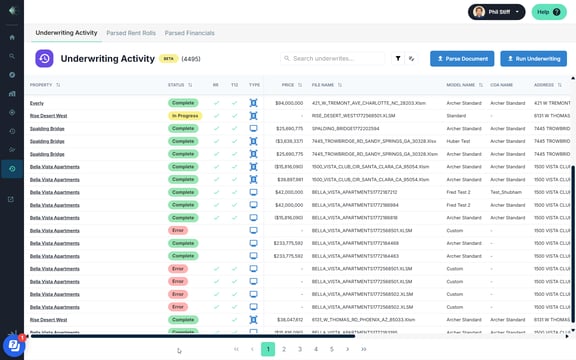
Underwrite types
Auto-Generated — run without In-App Parsing. Files processed in the background with no interactive review step.
Web Generated — created using In-App Parsing. User completed the step-by-step review in the browser before the underwrite was generated.
User-Generated — run via the Excel Add-in legacy flow, then saved back to Archer from Excel. Archer incorporates the updated parsed data on save.
🔒 Pro plan only: User-Generated underwrites require an explicit Save to Archer from Excel. Until that step is done, the job will not appear here and Archer won't have the updated information.
Parsed Rent Rolls tab
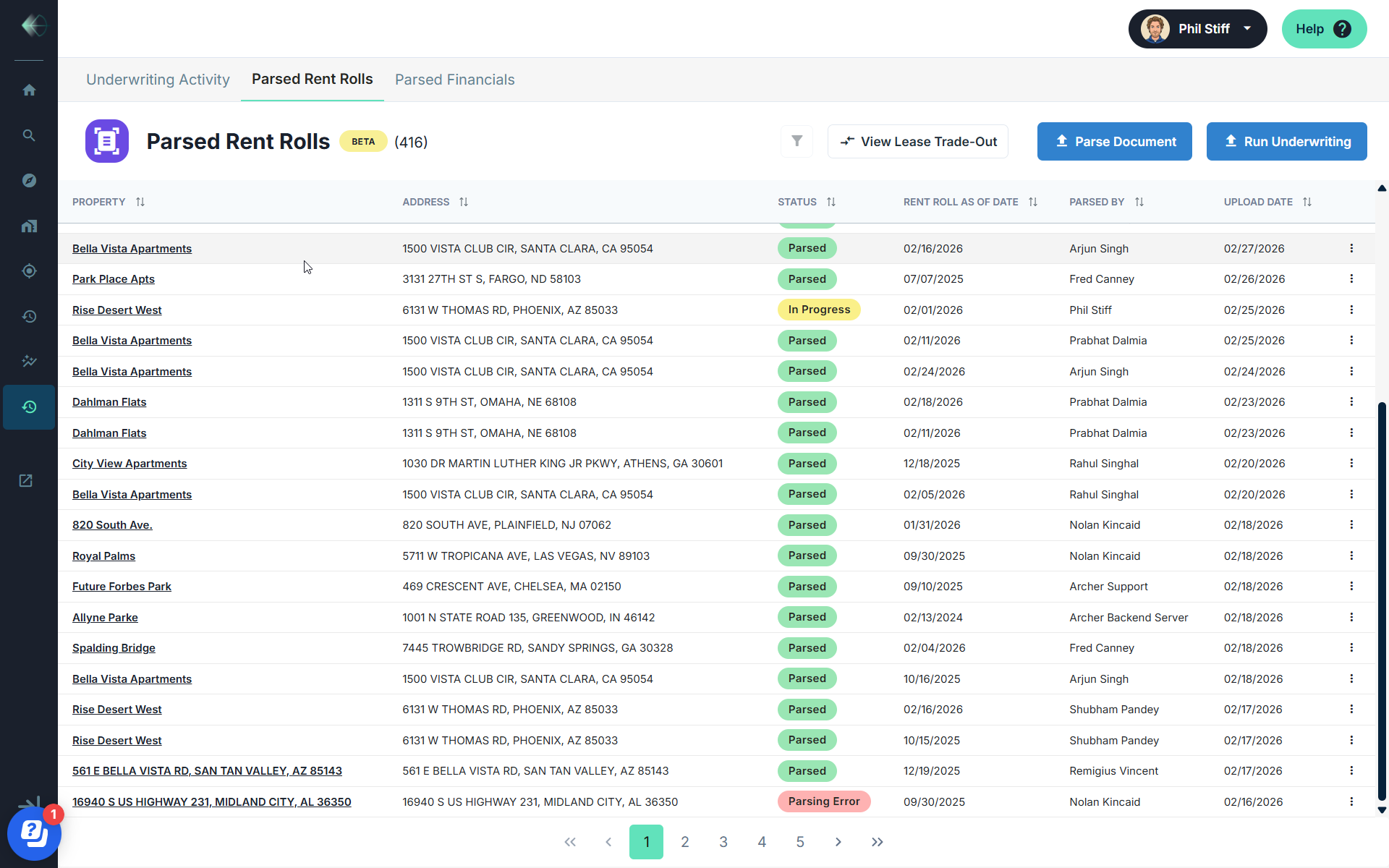
All Rent Rolls parsed — via underwrite, Parse Document, in-app or Excel Add-in. Shows property, address, status, Rent Roll as of date, parsed by, and upload date.
Clicking a completed record opens the in-app analytics view — available for all completed parses including Excel Add-in parses — so you can review unit mix, occupancy, rent benchmarks, and comp data without re-parsing.
🔒 Pro plan only: Excel Add-in parses only appear here after Save to Archer is completed.
Parsed Financials tab
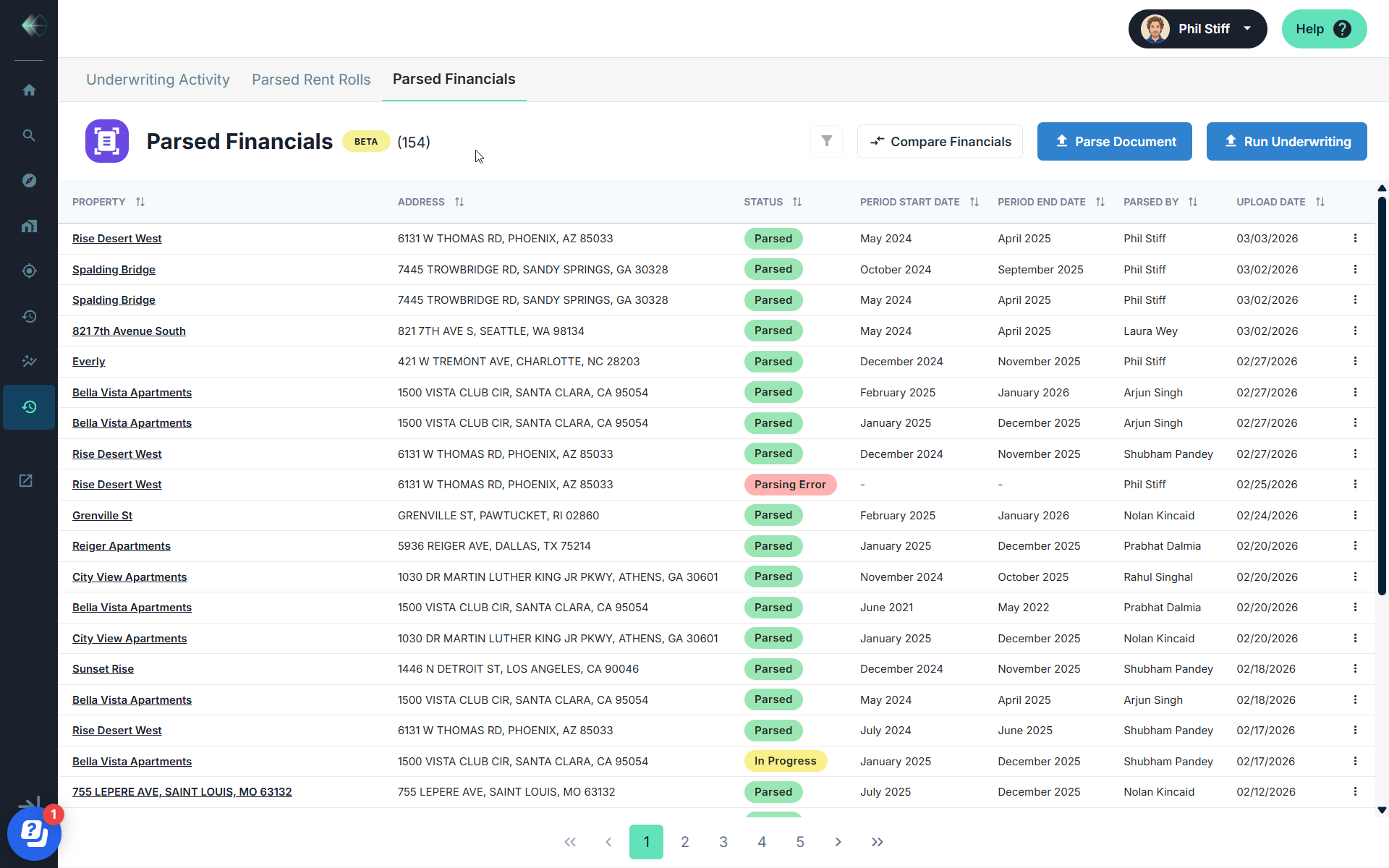
All T12s parsed. Shows property, address, status, period start/end dates, parsed by, and upload date. Clicking a completed record opens the in-app financial analytics view — available for all completed parses regardless of parsing method.
🔒 Pro plan only: Excel Add-in parses only appear here after Save to Archer is completed.
Saving Excel Add-in activity to Archer (Pro plan only)
Excel Add-in activity does not automatically sync to Archer. You must explicitly Save to Archer from within Excel for the activity to appear in All Activity, for Archer to use the updated parsed data for Rent and Expense Comps, and for in-app analytics to be available.
If a job is missing from All Activity, Save to Archer is the most common reason.
Until Save to Archer is completed:
- The job will not appear in any tab
- Archer will not have access to the updated file data
- In-app analytics will not be available for that parse
Statuses at a glance
| Status | What it means |
|---|---|
| Parsed / Complete | Finished successfully. Ready to download or view. |
| In Progress | Processing or waiting for input. Click to resume. |
| Parsing Error | Problem during parsing. May auto-resolve; otherwise contact support. |
| Error | Underwrite error. Support automatically notified. |
Tips
- Click any completed Parsed Rent Roll or Financial record to view in-app analytics — works for both IAP and Excel Add-in parses.
- Use the column picker to customize Underwriting Activity columns: Equity Required, Unit Count, Return on Cost, Exit Price, NOI (LTM), and more.
- Use the filter panel to narrow by property attributes, returns, location, underwriting settings, or user.
- Use "Save Draft & Exit" during IAP to save progress. The job stays as In Progress and can be resumed anytime.