![logo-green.png]](https://www.help.archer.re/hs-fs/hubfs/logo-green.png?height=40&name=logo-green.png)
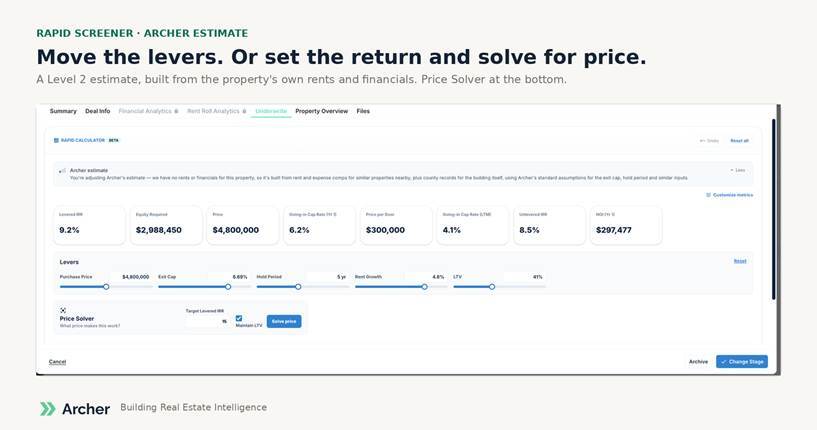
The Rapid Screener shows an estimated price, income and return on any property in Archer, and lets you adjust the levers that move a deal: purchase price, exit cap, hold period, rent growth and leverage. If you have a saved underwrite on the property, the screener shows your numbers and moves the way your model moves.
It’s in beta. Adjustments are session-only for now: Ctrl+Z and Ctrl+Y undo and redo your last few changes, and Reset all returns to the saved figures.
Where to find it
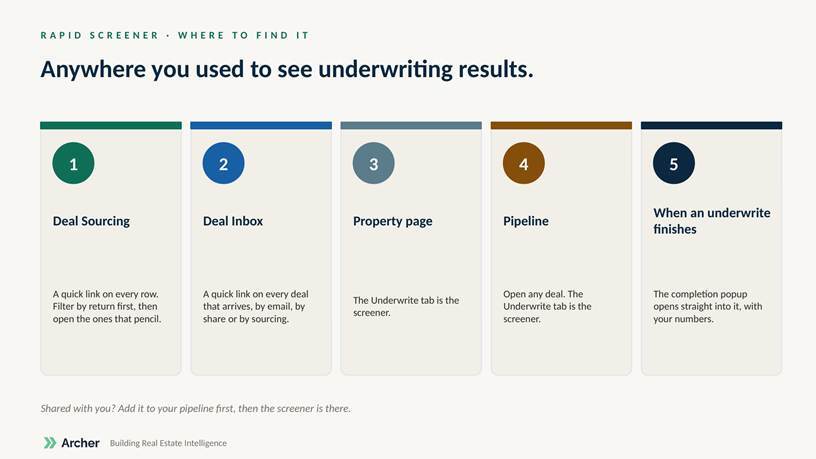
- Deal Sourcing. Every row has a quick link. Filter by estimated return first, then open the properties that pencil.
- Deal Inbox. Every deal has a quick link, whether it arrived by email, by share, or from sourcing.
- Property page. The Underwrite tab is the screener.
- Pipeline. Open any deal. The Underwrite tab is the screener.
- When an underwrite finishes. The completion popup includes Open screener, which takes you straight to it with your numbers loaded.
A deal shared with you shows the flat metrics view until you add it to your own properties or run an underwrite. The live screener appears once the data is in your profile.
What the levers do: purchase price, exit cap, hold period, rent growth and LTV are on the panel; Advanced controls adds physical occupancy, renovation, reserves and more. Each lever re-estimates the return with that one change applied.
Price Solver works the other way: enter a target levered IRR and it solves for the purchase price. Hover any metric for a note on how it was derived.
The level icon (see Data Source levels) tells you what data the number is built on.