![logo-green.png]](https://www.help.archer.re/hs-fs/hubfs/logo-green.png?height=40&name=logo-green.png)
The Archer Advanced model is our expanded underwriting model, available alongside the Starter model. It adds monthly-resolution forecasting, a full renovation plan with dedicated renovation financing, and the ability to underwrite against an uploaded property management budget.
This article walks through running an underwrite with the Advanced model and each of the features that distinguish it from Starter.
In this article:
- Running an underwrite with the Advanced model
- Setup tab: price sizing and deal structure
- Unit Mix: leasing trends, market rent, and loss-to-lease forecasting
- Pro Forma: month-by-month assumptions
- Renovation plan and renovation financing
- Underwriting to a property management budget
- Adding your own tabs and assumptions
1. Running an underwrite with the Advanced model
Start from the Underwriting page and click Run Underwrite.
Confirm the property details (property type, unit count, year built, class, style, average unit square feet, year renovated), then set your Underwriting Settings.
Under Underwriting Model, select Archer Advanced.
Attach your operating statements: choose your T12 file and rent roll, and set the Rent Roll as of Date and Rent Roll Type (Units or Beds). You can use saved data or upload new files.
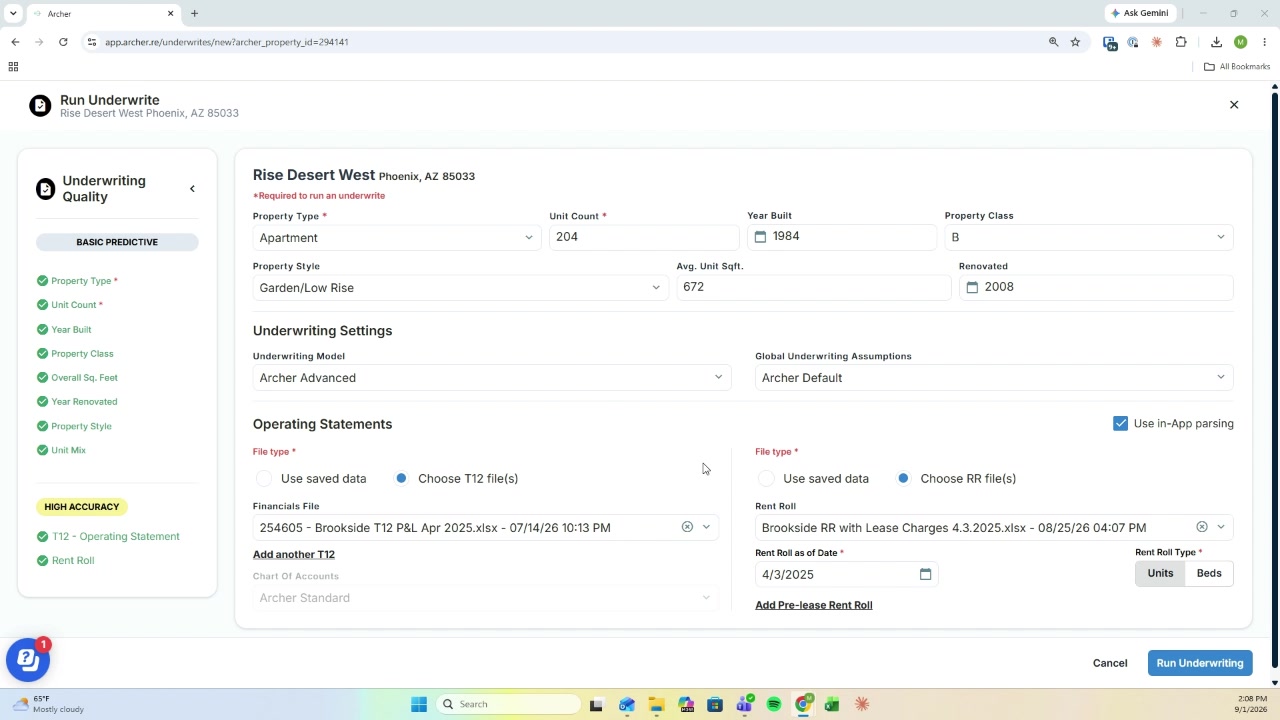
Click Run Underwriting to begin parsing.
Reviewing the parsed documents
Archer walks you through the parsed rent roll and financials in review steps:
- Rent roll: confirm the column headers mapped correctly.
- Charges: confirm charge categories are assigned correctly.
- Map Floor Plans: review the aggregated floor plan details — units, beds, baths, square feet, renovation status, lease type, and market rent. Copy values down across rows by clicking a field border and dragging, or edit individual units with the Edit icon.
- Analytics: this step can be skipped.
- T12 / Income and NOI: confirm the operating statement values. Check that the NOI difference reads zero before moving on.
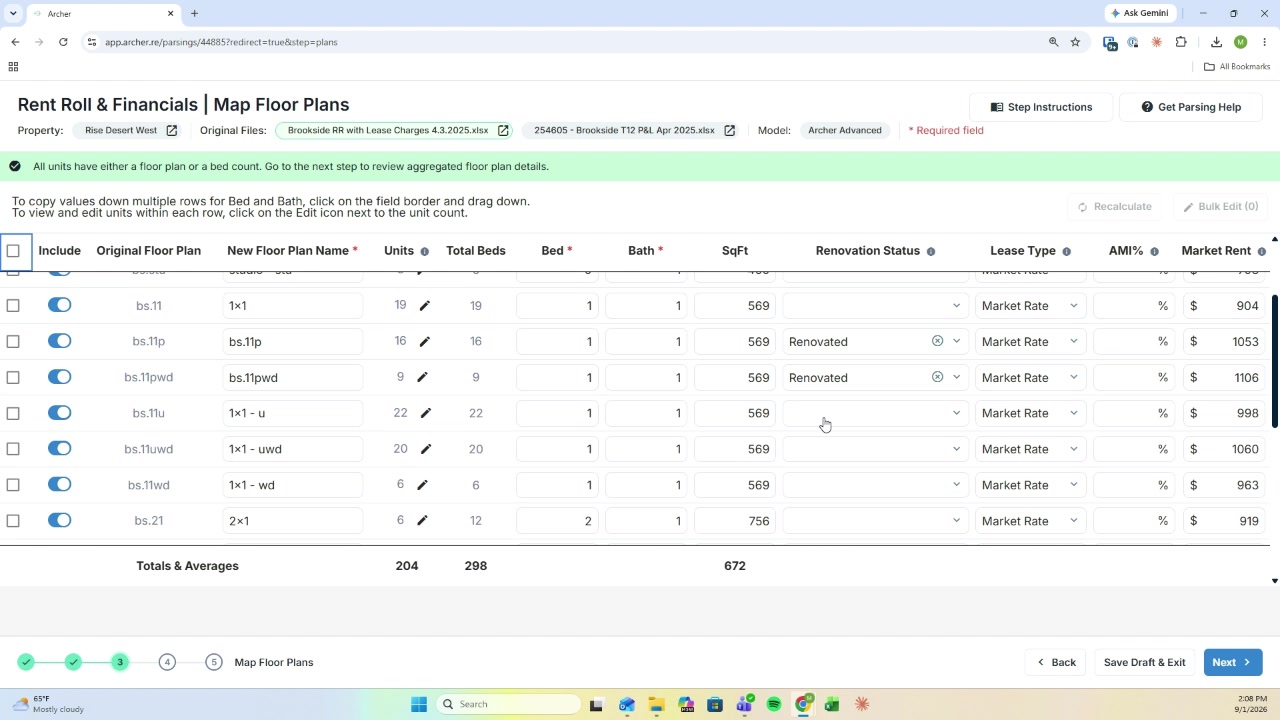
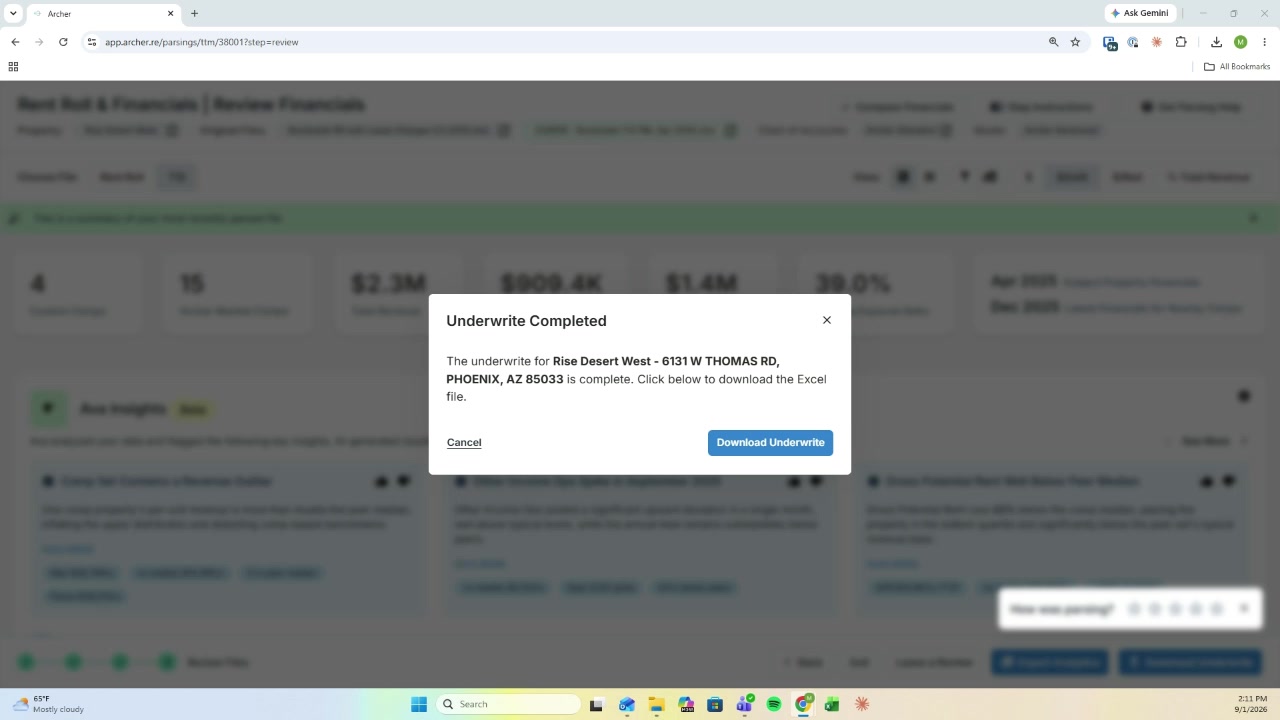
Click Next through each step, then Finish and Run Underwrite. When processing completes, click Download Underwrite to download the Excel model.
2. Setup tab: price sizing and deal structure
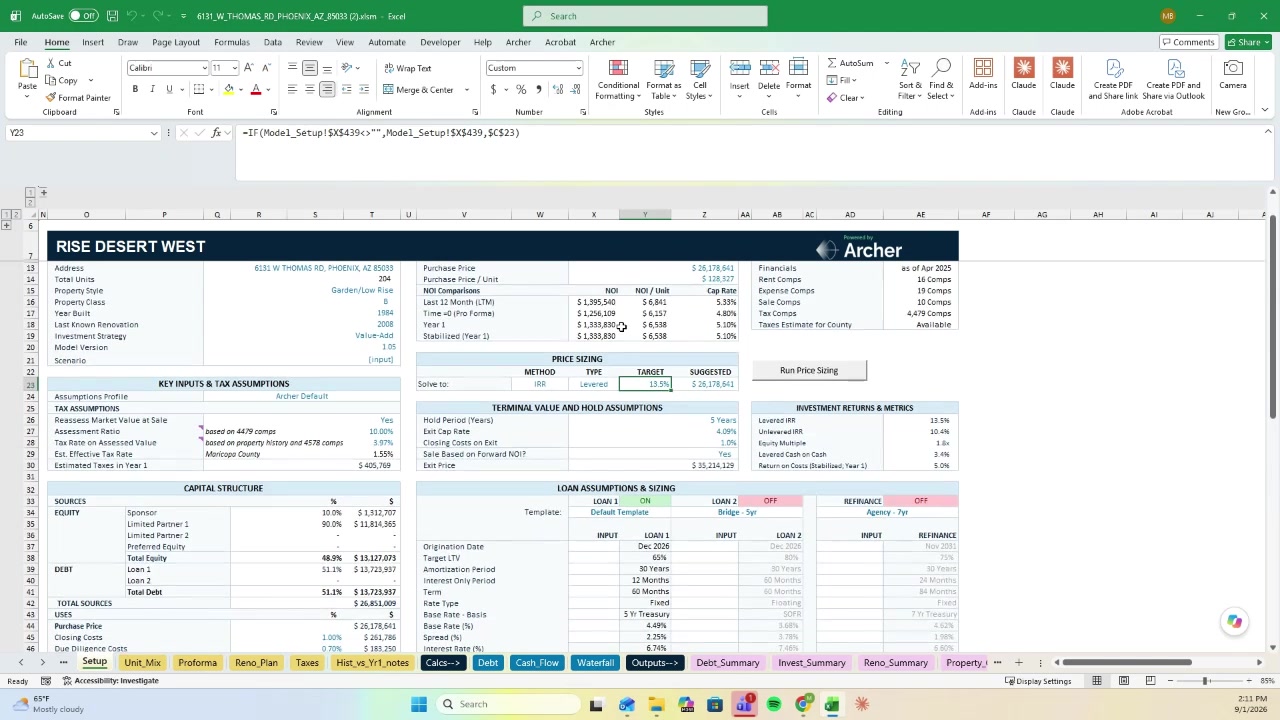
Open the model and start on the Setup tab: an overview of purchase price, debt, equity, and capital structure.
Price sizing to a return target. Enter your target (for example, a 15% IRR) and click Run Price Sizing. The model solves for the purchase price that hits it.
Manual purchase price. Or type your own number into the Purchase Price field — say, rounding a sized price to a clean figure — and the model recalculates around it.
The Setup tab also holds your Loan 1 assumptions and sizing, terminal value and hold assumptions, tax assumptions, and sensitivity analysis.
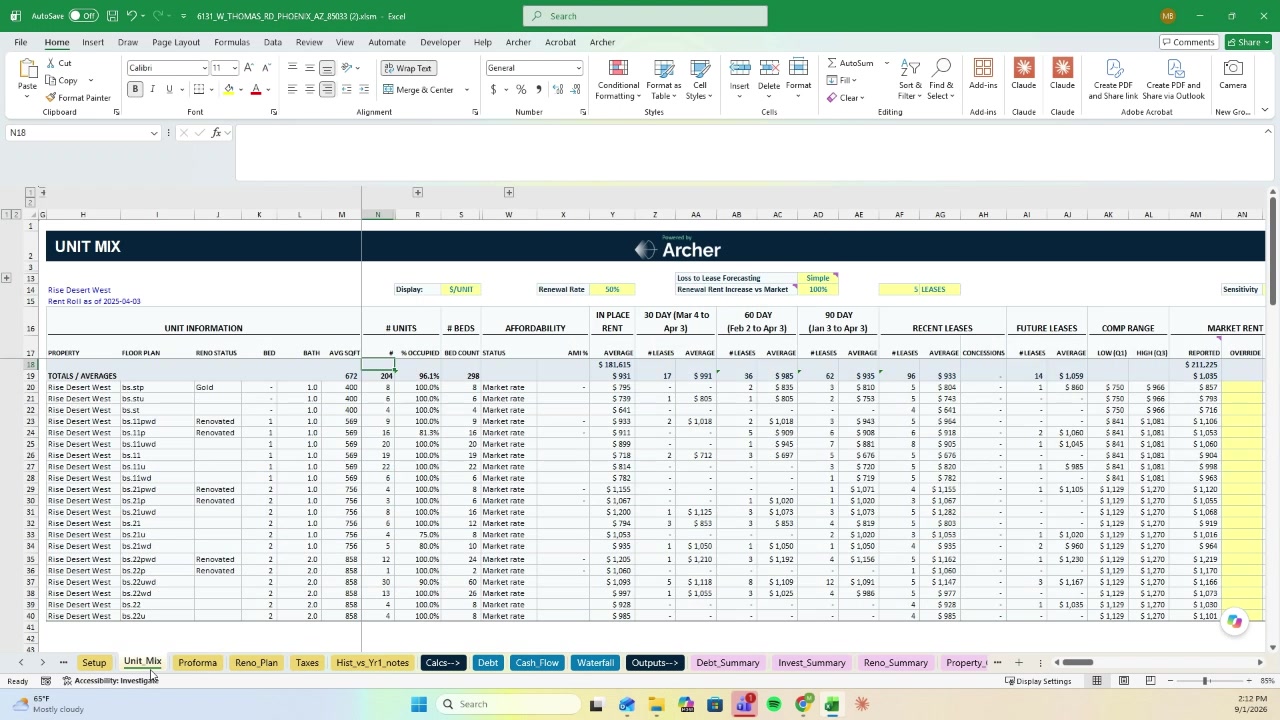
3. Unit Mix: leasing trends, market rent, and loss-to-lease forecasting
The Unit Mix tab is organized by floor plan: unit information, in-place rent, recent leasing trends at 30/60/90 days, future leases, comp range, and a market rent override column.
Loss-to-lease forecasting. At the top of the tab, switch Loss to Lease Forecasting from Simple to Detailed. The model burns down loss to lease based on unit turnover, and the forecast flows through to the Pro Forma.
4. Pro Forma: month-by-month assumptions
This is one of the biggest differences from the Starter model.
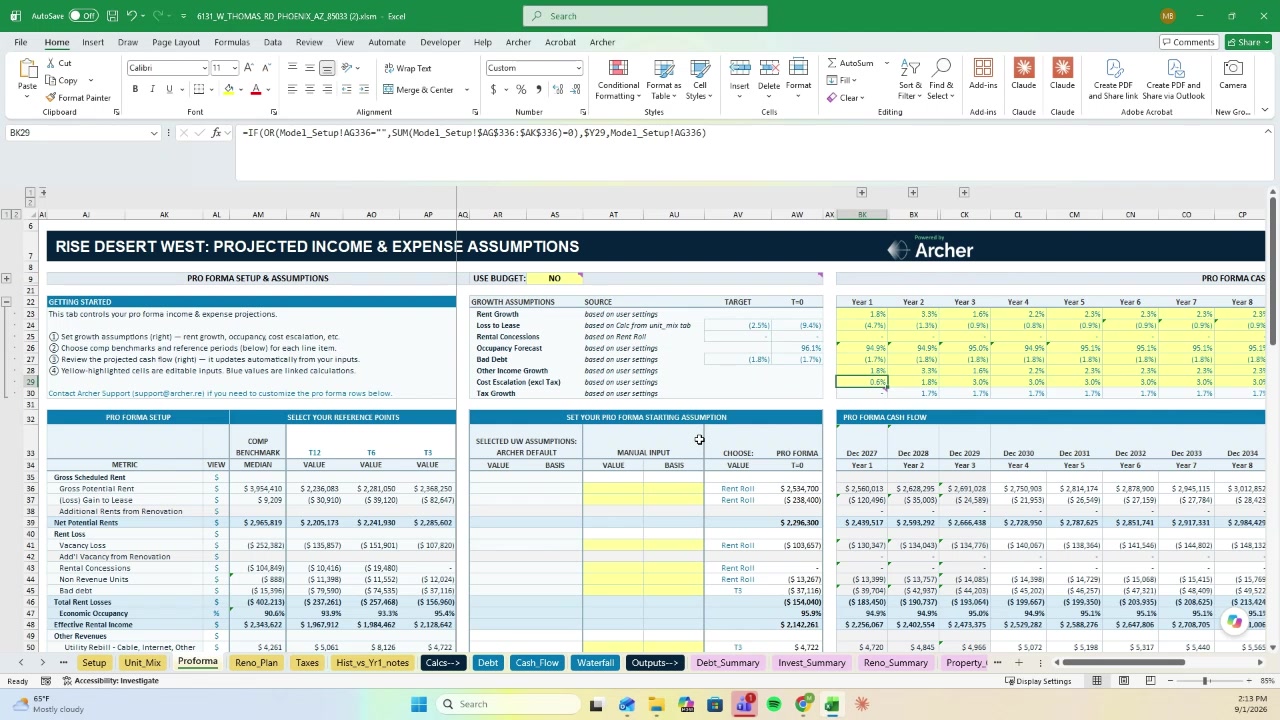
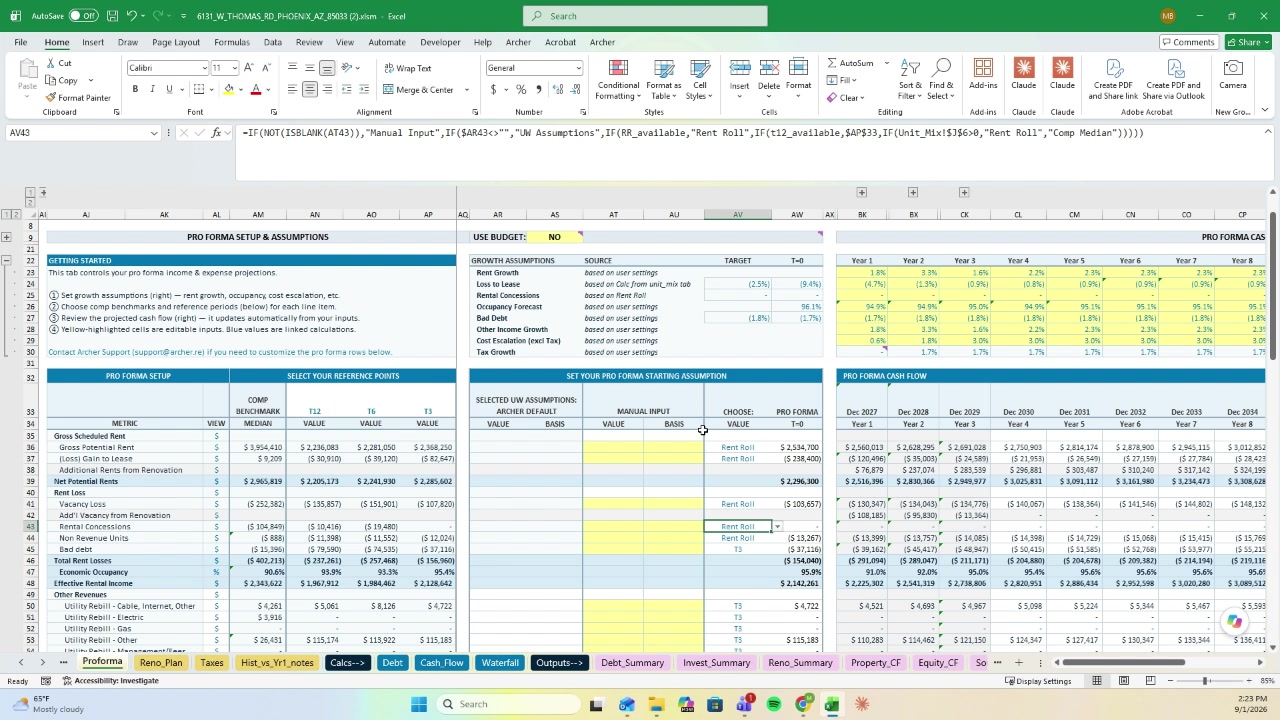
The first three years of the Pro Forma can be underwritten at monthly resolution. If the property is in lease-up, or has any dynamic a single annual assumption would smooth over, set occupancy, rent growth, loss to lease, and other assumptions by month.
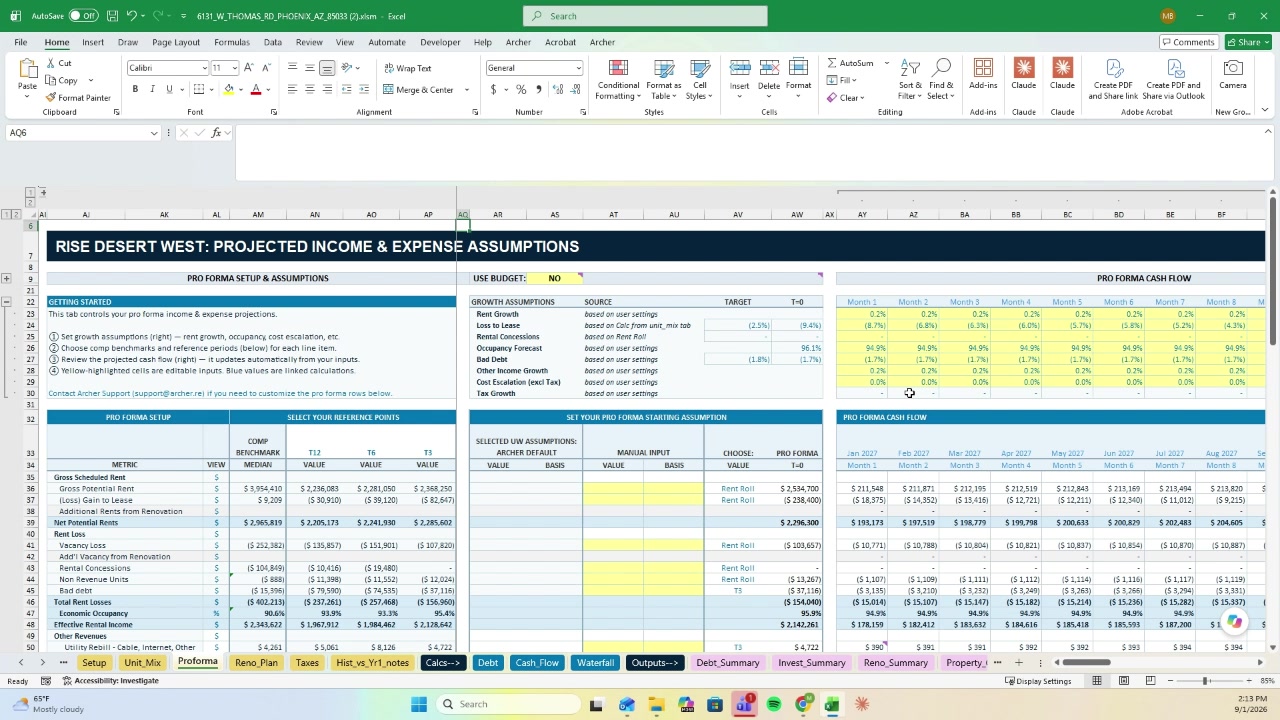
When you're done, collapse the monthly columns to view the standard annual pro forma.
5. Renovation plan and renovation financing
The Reno_Plan tab holds a dedicated renovation plan. Turn it on, then enter your assumptions: cost per unit, rent uplift per unit, units to renovate, units per month, and the schedule.
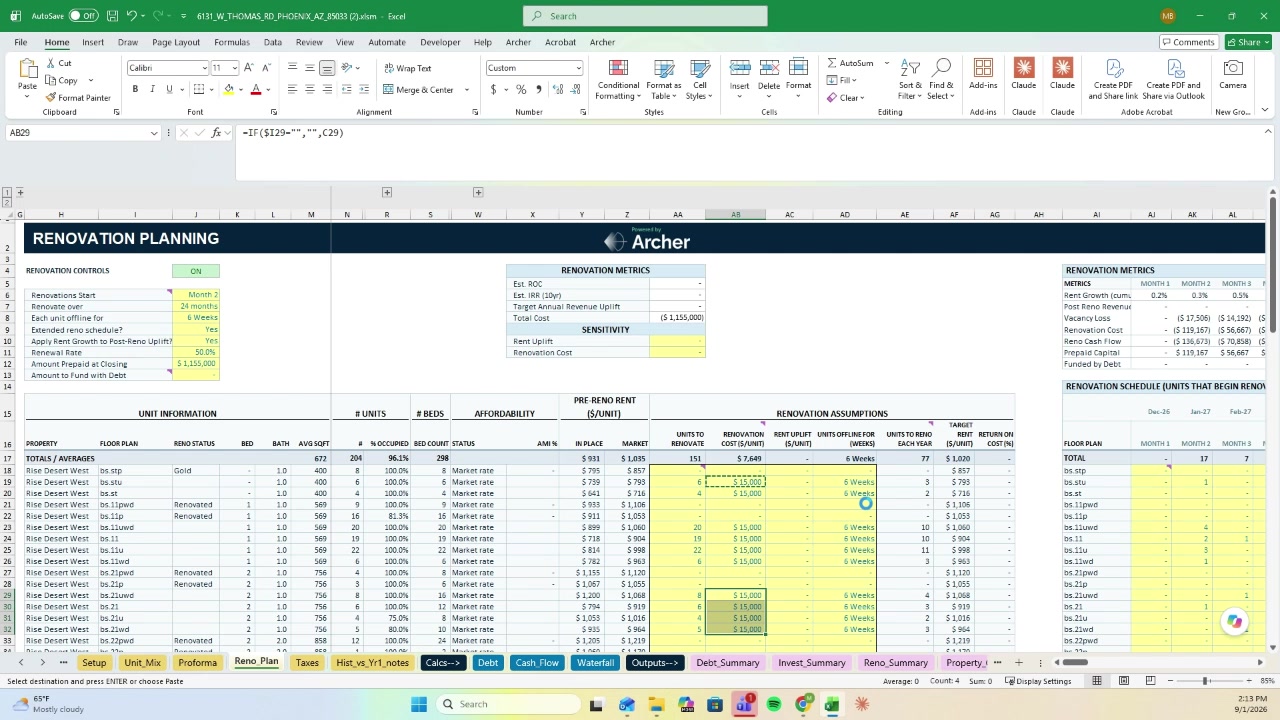
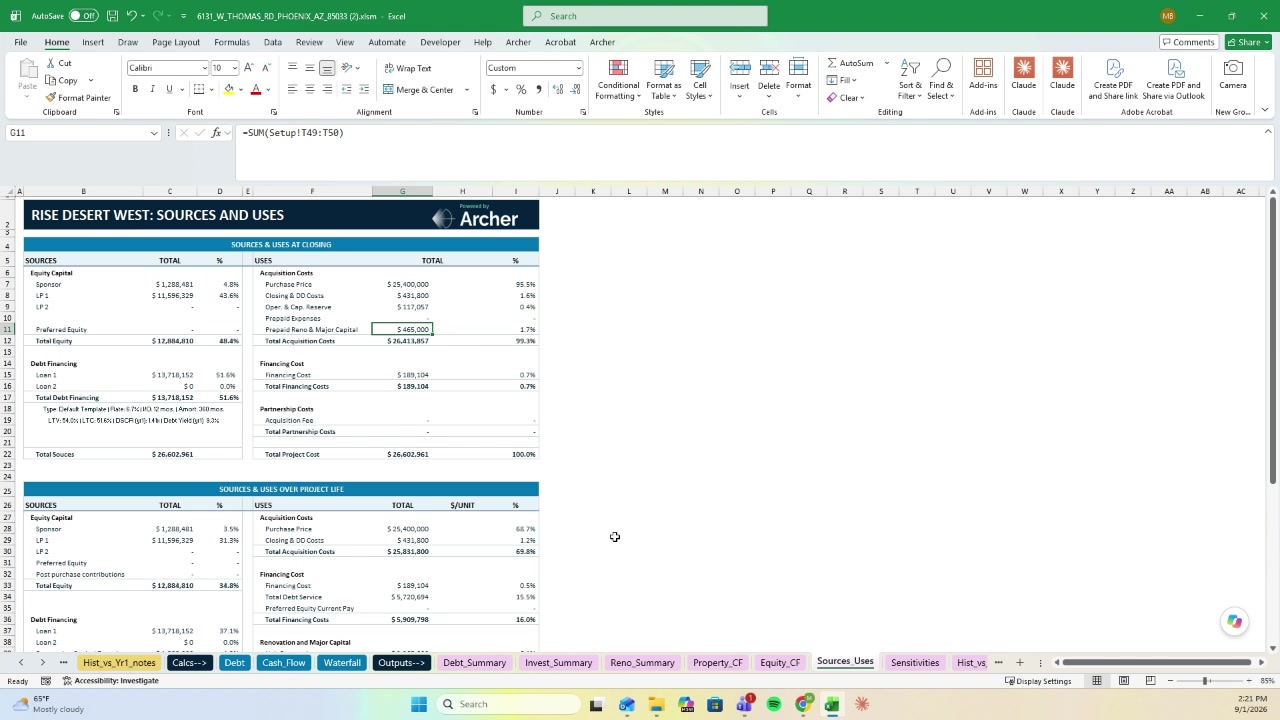
Funding renovations with debt. The tab shows the amount prepaid at closing and an Amount to Fund with Debt field. Enter the amount to fund, and it flows through the model in three places:
- Setup tab — appears as Loan 2 in your capital structure.
- Sources and Uses — the renovation capital drawdown appears as a source.
- Cash Flow — the drawdown appears as debt proceeds in the period drawn.
6. Underwriting to a property management budget
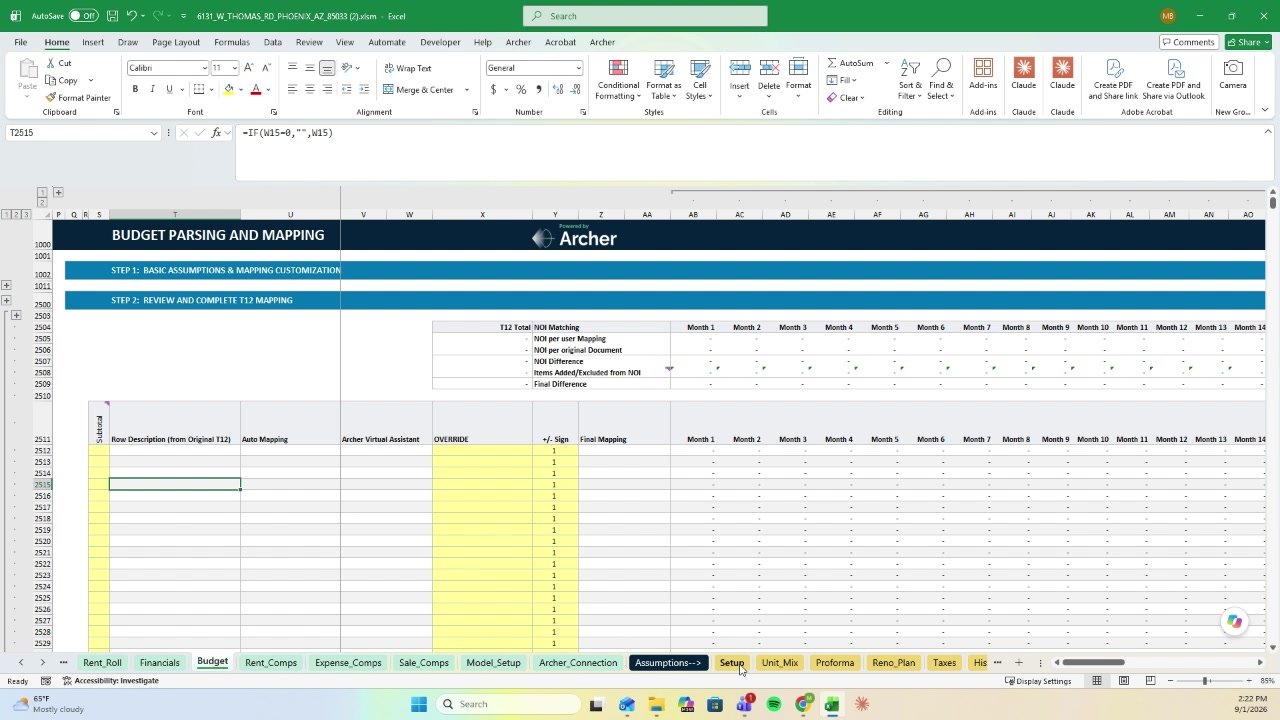
Later in a deal — once you're likely to close and have a property management budget — the Advanced model underwrites against it directly.
Upload the budget file to the second parsing tab, Budget, and parse it the same way you parse a T12 or rent roll. Once parsed, it populates the Pro Forma. The Use Budget toggle at the top of the Pro Forma switches between your budget figures and your original underwriting assumptions.
7. Adding your own tabs and assumptions
Both Advanced and Starter are fully extensible. Add whatever you need — a custom investment summary tab, your own assumption sets, additional base cases.
To make customizations permanent:
- Add your tabs, assumptions, or base cases to the model.
- Upload your customized model to Archer.
- Every underwrite from that point forward uses your version. (That's Advanced+.)
Need help? The Advanced model is enabled by your Archer team — contact support@archer.re to turn it on or with any questions.
Related: Archer Underwriting Models: Starter and Advanced · The Chart of Accounts Editor · Archer Starter / Starter+ 2.0 user guide